


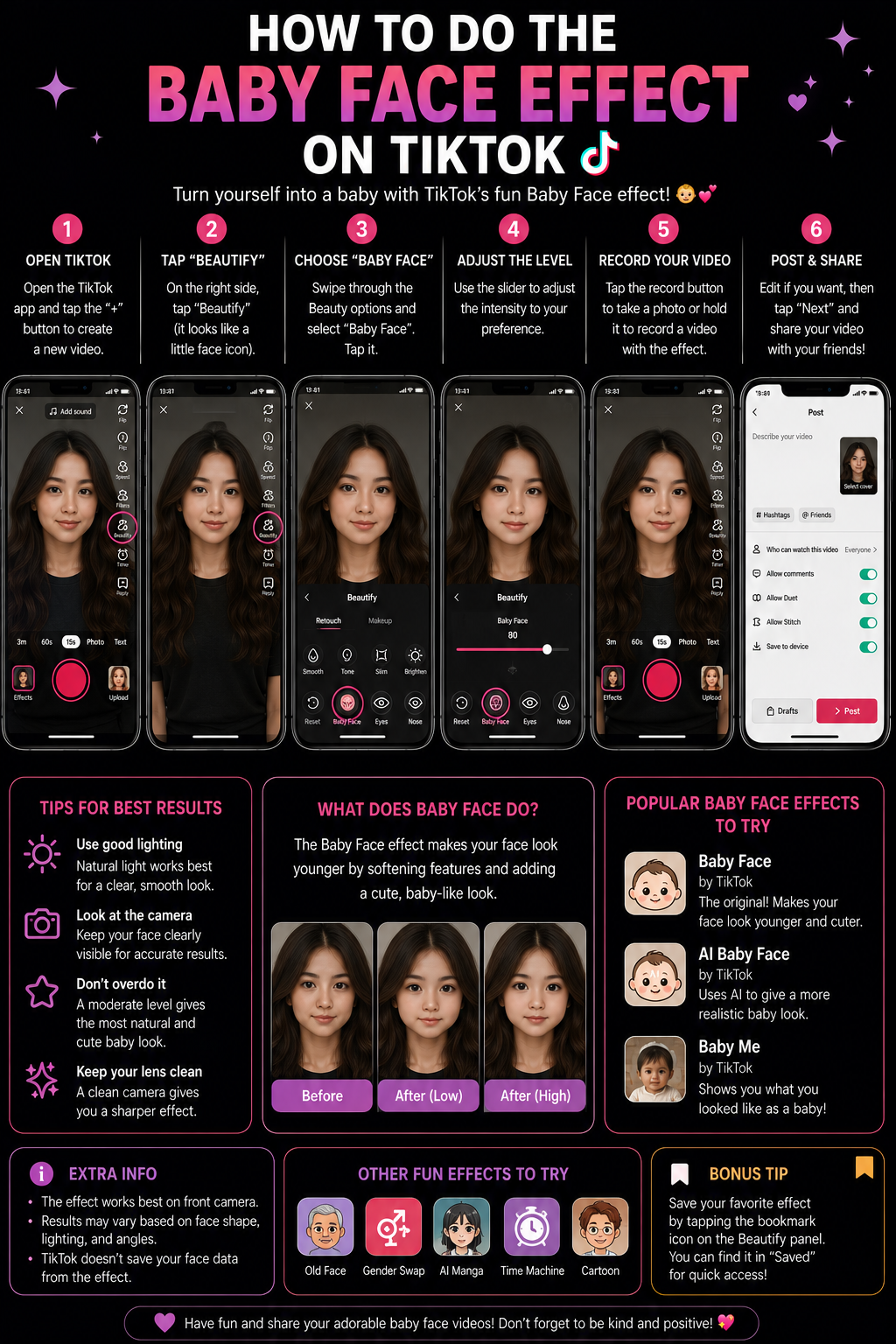
The Baby Face effect on TikTok is a playful facial transformation that makes an adult face appear younger or more childlike by softening the skin, rounding the cheeks, enlarging the eyes, shortening the appearance of the jaw, reducing visible lines, and sometimes adding an intentionally cartoonish expression. It is widely used in reaction videos, family resemblance comparisons, age transformation trends, comedy sketches, childhood photo recreations, and “meeting my younger self” videos.
Although many users refer to it as the Baby Face filter, TikTok may not maintain one permanent effect under that exact name. TikTok’s effect library changes over time, similarly named effects can produce very different results, and availability may vary according to region, device, age, application version, and account. One Baby Face effect might create a realistic younger appearance, while another may deliberately exaggerate the eyes and cheeks for comedy. 😊
The most reliable methods are to search TikTok’s Effects library with several related terms, open the exact effect directly from a video that already uses it, save the effect to Favorites, or create the transformation through TikTok’s editing and AI tools where they are available. TikTok explains the general process in its official Effects and Filters guide.
Definitions 🧠
Baby Face effect: A facial effect that gives the subject softer, rounder, younger, or more childlike features. Depending on the effect, it may change only skin texture or may significantly modify facial proportions.
Young Face effect: A more general age reducing transformation that usually attempts to make the person appear younger without necessarily creating childlike proportions.
De-aging effect: A digital effect that reduces visible signs associated with aging, such as lines, shadows, uneven texture, and facial volume changes.
TikTok effect: An interactive visual tool that can respond to facial landmarks, body movement, sound, gestures, or the surrounding environment. Effects can alter the face, add virtual objects, replace backgrounds, apply makeup, or animate the scene.
TikTok filter: A visual preset that changes the color, brightness, contrast, warmth, saturation, or overall atmosphere of a video. Filters normally affect the complete frame, while Baby Face effects track specific facial features.
Favorites: A saved collection that helps you return to an effect without searching for it again. Saving is important because effect names and search results can change.
AI Create: A TikTok editing feature that can generate images or videos from text prompts and uploaded media where the tool is supported. TikTok notes that this feature is not available everywhere.
Why the Baby Face Effect Is Popular 🎯
The Baby Face effect creates an immediate transformation that viewers can understand within the opening second of a video. It does not require a complicated explanation because the visual difference between the original appearance and the childlike version becomes the entire hook. This makes the format especially suitable for short videos in which creators need to capture attention quickly.
The effect also creates opportunities for humor. Creators can use it with captions such as “how my parents still see me,” “me avoiding adult responsibilities,” or “when someone asks whether I am old enough to be here.” The contrast between an adult voice, clothing, or situation and a digitally younger face provides the joke without requiring an elaborate script. 😄
Baby Face videos can also carry an emotional or nostalgic quality. A creator might compare the generated result with an authentic childhood photograph, recreate an old family pose, or ask relatives whether the transformation resembles their younger appearance. In that sense, the effect acts like a playful digital time machine: it cannot reproduce the past accurately, but it can inspire memories and conversations about it. ⏳
How to Apply the Baby Face Effect 🛠️
Method 1: Search TikTok’s Effects Library 🔎
This is the simplest method when you want to record the Baby Face transformation directly through the TikTok camera.
1. Open the TikTok application.
2. Tap the Add Post + button at the bottom of the screen.
3. Tap Effects near the recording button.
4. Open the effect search option when it is displayed.
5. Search several related terms rather than relying on one exact title:
- Baby Face
- Babyface
- Child Face
- Little Me
- Younger Me
- Young Face
- Age Reverse
- De Age
- Youth
- Face Age
6. Tap an effect to preview it on your face.
7. Test the effect while smiling, talking, blinking, and turning your head slightly. This reveals whether the eyes, mouth, cheeks, and jaw remain aligned during movement.
8. Tap the Favorites button before recording so the effect is easier to find later.
9. Record a short test clip and watch the complete preview.
10. When the tracking looks stable, record the final video and continue to TikTok’s editing screen.
TikTok’s official documentation explains that certain effects can be applied before or after recording, while others are available only during one stage. Therefore, when a Baby Face effect does not appear after you upload a video, it may be designed exclusively for live camera recording rather than post production.
Method 2: Use the Exact Effect from Another TikTok 📲
Opening the effect from a current TikTok video is normally the fastest way to obtain the precise version used in a trend. This approach prevents confusion when several effects have similar names.
1. Open a TikTok video containing the Baby Face transformation you want.
2. Look for the effect name near the creator information or caption area.
3. Tap the effect name to open its dedicated page.
4. Watch several videos on the effect page to confirm that it consistently creates the intended appearance.
5. Tap Use this effect.
6. Add the effect to Favorites before recording.
7. Create a short test and compare your result with the original trend.
If the source video does not display an effect name, the creator may have used Retouch controls, AI generation, another editing application, or a manually edited transition rather than a reusable TikTok effect.
Method 3: Create a Baby Face Reveal Transition 🔄
A before and after reveal usually creates a stronger video than displaying the effect from beginning to end because viewers see the original appearance first and wait for the transformation.
1. Choose an audio track with a clear beat, lyric, snap, or sound cue.
2. Place your phone on a tripod or stable surface.
3. Record the opening clip without the Baby Face effect.
4. Finish the opening clip with a movement that hides the transition, such as covering the lens, turning your head, moving closer to the camera, or snapping your fingers.
5. Activate the Baby Face effect.
6. Return to the same position and begin the second recording by completing the same movement.
7. Add both clips to TikTok’s editing timeline.
8. Trim the first clip at the moment the camera is covered or the movement reaches its fastest point.
9. Trim the second clip so the change occurs on the musical beat.
10. Add a short caption such as “Meeting my younger self” or “How my family still sees me.”
The camera position should remain unchanged between clips. Mark the tripod location and your standing position if necessary. When the eyes, shoulders, background, and camera height remain aligned, the effect feels like an instant transformation rather than two unrelated recordings.
Method 4: Use Retouch Tools for a Subtle Baby Face Look ✨
If the available Baby Face effects look too exaggerated, TikTok’s appearance controls may help you create a softer and more natural youthful appearance.
1. Open the TikTok recording camera.
2. Look for a tool labeled Retouch, Beauty, Enhance, or a similar name.
3. Begin with a small amount of smoothing and brightness.
4. Avoid extreme eye enlargement, jaw reduction, or cheek adjustment if you want the result to remain recognizable.
5. Record a test while speaking and turning your head.
6. Reduce any control that creates flickering, removes all skin texture, or changes your facial proportions excessively.
This method does not create the dramatic childlike transformation associated with some Baby Face effects, but it can produce a more believable younger appearance for casual videos.
Method 5: Add a Filter for Softer Color and Lighting 🌈
A TikTok filter can support the transformation by creating softer contrast, warmer skin tones, or brighter shadows, although it does not normally change facial proportions.
1. Tap Filters in the TikTok camera’s side panel.
2. Compare the available portrait and atmosphere options.
3. Select a filter that keeps skin tone and clothing colors realistic.
4. Adjust its strength with the intensity slider.
5. Avoid using the maximum intensity unless the video is intentionally stylized.
6. Record with the filter or apply it after uploading where that option is available.
One moderate facial effect and one subtle filter usually look cleaner than several powerful enhancements stacked together.
Method 6: Use AI Create Where Available 🤖
TikTok’s video and photo editing guide explains that AI Create can generate an image or video using text prompts together with uploaded media. TikTok also notes that the feature is not currently available everywhere.
1. Tap the Add Post + button.
2. Upload a clear photograph or short video.
3. Continue to the editing screen.
4. Tap AI Create if the option appears.
5. Choose the relevant generation option or enter a written prompt.
6. Describe the intended result carefully. For example:
“Create a playful younger version of this adult while preserving recognizable identity, natural skin tone, hairstyle, clothing, lighting, background, and realistic facial proportions.”
7. Generate several versions and examine the eyes, teeth, hairline, hands, accessories, and background.
8. Select the result that preserves the person’s identity most accurately.
9. Add an AI disclosure when the generated result could be mistaken for genuine footage.
An AI transformation may alter more than the face, so review the complete image rather than focusing only on the cheeks and eyes.
Which Baby Face Method Should You Choose? 📊
| Creative Goal | Recommended Method | Main Advantage | Main Limitation |
|---|---|---|---|
| Instant childlike camera transformation | Search TikTok Effects | Fast and interactive | Availability and names can change |
| Copy a specific viral Baby Face look | Open the effect from its original video | Provides the exact effect version | The source may not use a reusable effect |
| Create a strong before and after reveal | Record two aligned clips | Creates a clear hook and payoff | Requires precise framing and trimming |
| Create a natural younger appearance | Use moderate Retouch controls | Preserves facial identity | Produces a less dramatic result |
| Improve the tone of the final video | Add a low intensity filter | Enhances brightness and color | Does not reshape facial features |
| Generate a detailed younger version | Use AI Create where supported | Can transform an uploaded image or video | May alter identity or background details |
Baby Face Workflow Diagram 🧩
Choose the result you want
          |
          +--> Live Baby Face transformation
          |        |
          |        +--> Effects -> Search -> Preview -> Favorite
          |
          +--> Exact viral version
          |        |
          |        +--> Open original video -> Tap effect -> Use it
          |
          +--> Before and after reveal
          |        |
          |        +--> Record original -> Hide cut -> Activate effect
          |
          +--> Subtle younger appearance
          |        |
          |        +--> Retouch -> Low settings -> Add soft filter
          |
          +--> AI generated version
                   |
                   +--> Upload -> AI Create -> Generate -> Review -> Post
How to Make the Baby Face Effect Look Better ✨
Use Soft Front Lighting
Face a window or use a soft light placed near eye level. Harsh overhead lighting creates deep shadows, while low lighting can cause the effect to flicker or apply uneven smoothing.
Keep Your Face Fully Visible
Begin with a front facing position in which both eyes, the nose, mouth, cheeks, and jawline are visible. Once the effect locks onto your face, test small head movements.
Avoid Obstructions
Large sunglasses, masks, hands, reflective glasses, hats, and hair covering the eyes can interrupt facial tracking. Keep the first test simple.
Use an Uncluttered Background
A plain background helps viewers focus on the transformation and may reduce visual errors around the face and hair.
Record Short Clips
Short recordings are easier to review and generally maintain more stable tracking. Longer clips introduce more head turns, expressions, lighting changes, and opportunities for the effect to drift.
Avoid Excessive Filter Stacking
A Baby Face effect may already enlarge the eyes, reshape the jaw, smooth the skin, and brighten the face. Adding strong Retouch settings and another beauty effect can make the face appear unnatural or unrecognizable.
Test Natural Expressions
Do not judge the effect only from a motionless preview. Speak, smile, blink, and move naturally so you can identify tracking errors before publishing.
Practical Example: Meeting My Younger Self 🎬
Imagine that you want to create a seven second “meeting my younger self” TikTok. You select an audio track with a strong beat at approximately three seconds, place your phone on a tripod, and record yourself looking directly into the camera without an effect. At the transition point, you raise your hand until it completely covers the lens.
You then activate the Baby Face effect, return to the same position, begin with your hand covering the camera, and pull it away on the beat while making a surprised expression. In the editor, you trim both clips at the exact frame where the hand covers the complete screen. You add the caption “When adult responsibilities disappear” and keep the final section short so viewers can replay the transformation easily.
A Short Anecdote ☕
I have seen creators search only for the phrase “Baby Face,” test the first result, and assume the trend did not work because the effect looked completely different from the one they had seen. When they returned to the original video and tapped its effect name, they discovered that the desired transformation had been published under another title. Saving that version to Favorites ended the search immediately. The experience shows that effect pages are often more reliable than effect names.
Personal Workflow 🙂
For a casual Baby Face reaction, I would locate a current TikTok using the desired effect, open the effect directly from the video, and save it to Favorites. I would then record a short test in soft front lighting while smiling, talking, and turning slightly. For a polished reveal, I would lock the phone in position, record separate original and transformed clips, and hide the cut with a hand cover synchronized to a musical beat.
If the available live effects changed my face too dramatically, I would use moderate Retouch controls for a softer result. For an AI generated image or video, I would create several versions, compare them carefully, and avoid publishing any result that distorted identity, hands, accessories, or background details.
Responsible Use and Self Image 💛
Baby Face effects are entertainment tools rather than accurate simulations of childhood, age, attractiveness, health, or genetics. They can modify normal facial proportions, remove natural skin texture, enlarge the eyes, and create an appearance that does not correspond to how the person genuinely looked at a younger age.
TikTok has publicly discussed concerns about appearance altering effects, particularly when viewers may not realize that someone’s appearance has been digitally modified. The platform has distinguished obvious humorous effects from subtle appearance changes that may influence how people evaluate themselves or others.
Use the effect playfully without treating the altered face as a beauty standard. Obtain permission before applying it to another person’s image, especially when children or private individuals are involved. When AI generation produces a realistic transformation, provide an appropriate disclosure so viewers understand that the image or video has been digitally changed.
Frequently Asked Questions 🤓
1. Why can’t I find an effect called Baby Face?
The effect may use another title, may not be available in your region, or may have been removed. Search related terms or open it directly from a current video.
2. Is Baby Face the same as Young Face?
Not always. Young Face effects usually reduce the apparent age more subtly, while Baby Face effects may create exaggerated childlike proportions.
3. Can I apply the effect after recording?
Some effects work after recording, but many face tracking effects must be selected before filming. Test the desired effect through the live camera first.
4. How do I save the effect?
Open the effect in TikTok and tap the Favorites button in the effects panel.
5. Why does the effect disappear when I turn sideways?
Strong side angles can hide facial landmarks. Use brighter light and keep both eyes visible during the main transformation.
6. Why does my face look too smooth?
The effect may include heavy smoothing, or TikTok’s Retouch controls may also be active. Disable additional enhancements or choose another effect.
7. Can I use the effect on a photograph?
Some effects accept uploaded media, while others require the live camera. AI Create may provide another option where it is supported.
8. Why does the effect look different on another person?
Facial structure, expression, lighting, camera processing, skin tone, and the exact effect version can influence the result.
9. Can I combine Baby Face and Aging effects?
Yes. Record separate clips with each effect and combine them to create a childhood, current age, and older age progression.
10. What is the quickest way to recreate a viral Baby Face trend?
Open the original TikTok, tap the displayed effect name, select Use this effect, and save it to Favorites.
People Also Asked 🔎
Does TikTok have one official Baby Face filter?
TikTok provides a changing library of effects rather than guaranteeing one permanent Baby Face tool with the same name for every account.
Why did my saved Baby Face effect disappear?
The creator may have removed it, TikTok may have restricted it, or it may no longer be available in your region.
Can TikTok make an adult look like a real child?
An effect can create a younger or childlike visual impression, but it should not be treated as an accurate reconstruction of the person’s childhood appearance.
Can I make a Baby Face video without an effect?
Yes. You can combine a childhood photograph, a matching adult pose, and a smooth transition to create a related trend without modifying facial features.
What type of content works best with this effect?
Reaction videos, childhood comparisons, family resemblance posts, age progression edits, comedy sketches, and before and after reveals work particularly well.
Conclusion ✅
To do the Baby Face effect on TikTok, open the recording camera, tap Effects, and search terms such as Baby Face, Child Face, Younger Me, Little Me, Age Reverse, or Young Face. Preview several versions because some produce a realistic younger appearance while others create an exaggerated cartoon style. Save the best option to Favorites, record in soft front lighting, and review the eyes, mouth, jaw, cheeks, and hairline during natural movement.
When you want the exact version used in a viral video, open the effect from the original TikTok instead of relying only on keyword search. For a stronger reveal, record separate original and transformed clips from the same camera position and align the change with a musical beat. You can also use moderate Retouch controls for a subtle appearance or AI Create where supported for a generated transformation. The cleanest results come from stable framing, clear lighting, short clips, restrained adjustments, and careful review rather than stacking several aggressive beauty tools. 👶✨

